Introduction
Distrobox makes it possible to run applications not available for your current Linux distribution. It does this through running on top of another Linux distribution in a container, which is tightly integrated with the host computer. The Distrobox container provides graphical app support, sound, and can share USB devices with the host. It also shares your home directory, so you can access the files of your host computer from the container. Distrobox can either utilize Docker or Podman.
Install Prerequisites
Install Docker or Podman if you don’t have one of them installed.
To install Docker on Ubuntu, run this command:
sudo apt install docker -y
To install Podman on Ubuntu, run this command:
sudo apt install podman -y
Install Distrobox
Execute this command to install Distrobox:
curl https://raw.githubusercontent.com/89luca89/distrobox/main/install | sudo sh
Set Up Container
Execute this command to download an image and create a container:
distrobox-create --name fedora-distrobox --image fedora:latest
You can customize the command above to fit your needs. For example, you can download Debian instead of Fedora. For that, replace fedora:latest with debian:latest . You can also change fedora-distrobox to another name of your choice but be sure to use the new name consistently in the following commands.
After the container is created, run this command to launch into the Distrobox container shell.
distrobox-enter --name fedora-distrobox
Test Out Distrobox
Run the command below in the currently running Distrobox shell to print information about the currently running container OS:
$ cat /etc/os-release | grep -i name
NAME="Fedora Linux (Container Image)"
...
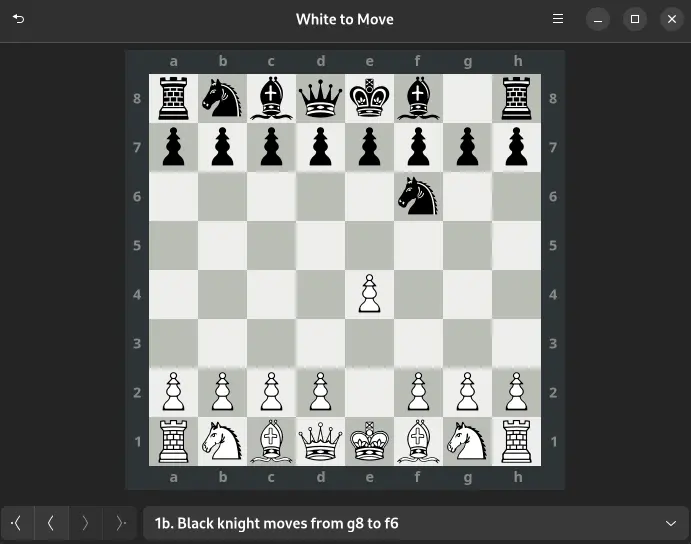
Install a graphical app in your container to test the working GUI. I installed Gnome Chess using the following command:
sudo dnf install gnome-chess
We can then launch Gnome Chess:
gnome-chess &
Lo and behold, Gnome Chess launches and is fully functional!
Export Apps to Linux Menu
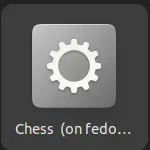
You can export apps from the Fedora Distrobox container you created into your host computer’s menu using the command below in the Distrobox shell:
distrobox-export --app gnome-chess
If you installed a different app, replace gnome-chess with your app name. I have included a screenshot of the icon of Gnome Chess in my menu:
Stop the Container
Exit the Distrobox terminal by typing exit at the prompt.
If you are using Docker, the command to stop the Fedora container is:
docker stop fedora-distrobox
If you are using Podman, the command is:
podman stop fedora-distrobox
Conclusion
There you have it… a way to run apps not available for your Linux Distribution. Be sure to check back for more articles on TitusJTech!